DNS: How the Internet Finds Websites
How does DNS find a website's IP address? Follow a DNS lookup, understand caching and TTL, and discover why DNS changes sometimes take time.
Published
DNS: How the Internet Finds Websites
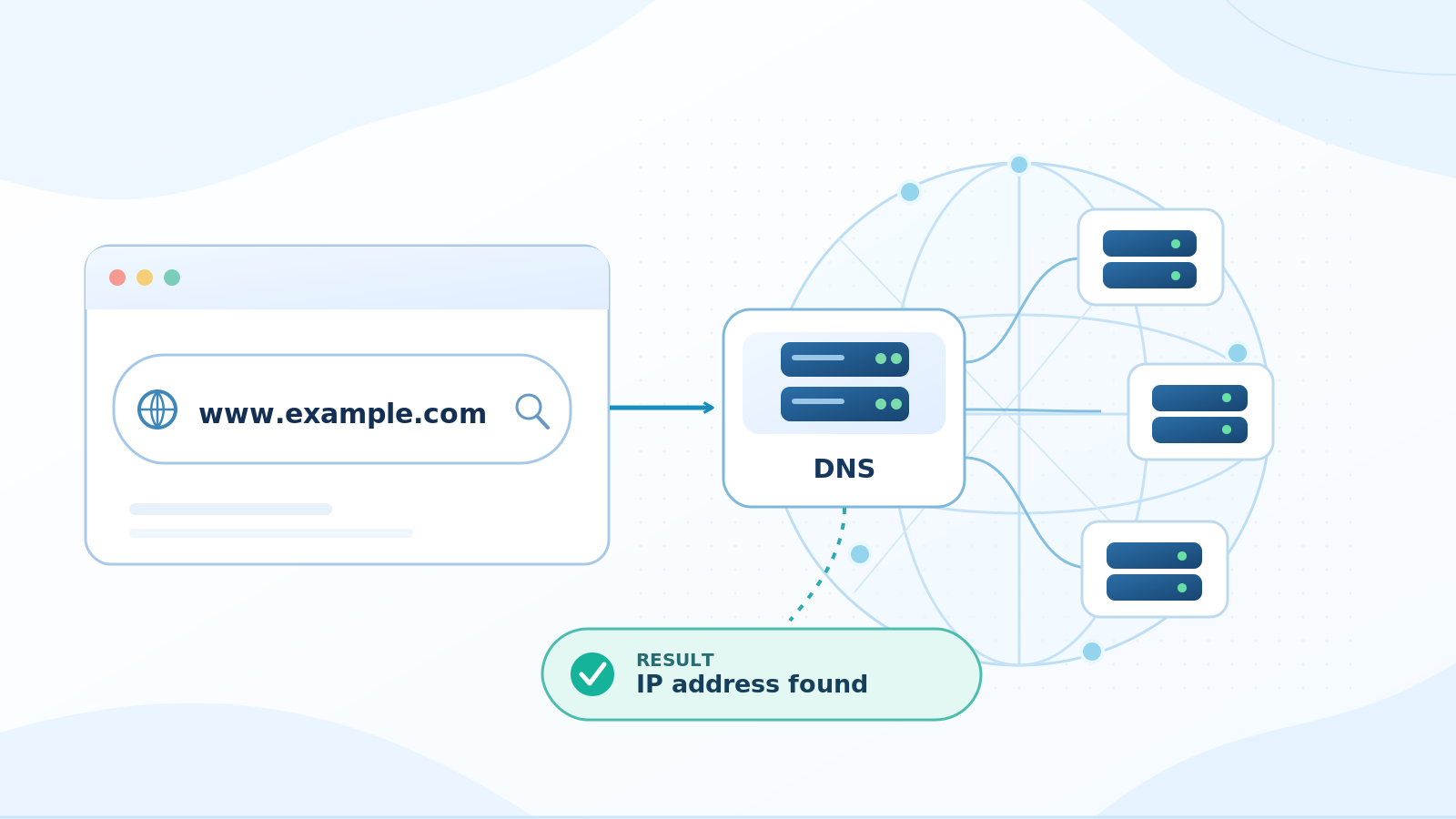
You type a website address into your browser, press Enter, and a moment later, the page appears.
Nothing unusual. We do this countless times a day without giving it a second thought.
But how does your browser know which server to connect to? You didn't enter an IP address. You entered a website name — something designed to be readable and easy to remember.
Let's say you typed www.example.com. Who knows its IP address? Your internet provider? The company where the domain was registered? Or perhaps there's some enormous master server with a list of every website on the planet?
You could try to solve the problem that way: build one gigantic server containing every domain name and its corresponding IP addresses.
But think about the scale. There are millions of websites, and people make an enormous number of requests every day. New sites appear, old ones disappear, and others move to different servers.
Keeping all that information up to date in one giant database, while answering requests from around the world, would be a nightmare.
So how does the internet manage without a giant DNS server that knows everything?
First Things First: Who Knows the Address?
When your device needs a website's IP address, it usually turns to a DNS resolver. This is a service that looks up information in the Domain Name System (DNS).
On a typical home connection, the resolver is provided by your internet service provider. But it doesn't have to be. There are public DNS services, and some browsers and VPN applications can choose where to send DNS queries themselves.
Now, let's see how we can make the whole process easier.
The idea is simple: why do the same work twice if you've already found the answer?
First, your browser and operating system may check whether they still have the address saved from an earlier visit.
If they find it and the saved information is still valid, great. There's no need to ask anyone else.
No luck? Then it's time to ask a DNS resolver.
But even the resolver doesn't necessarily have to start from scratch. Someone else may have requested the same address recently, and the answer could still be stored in its cache.
If nobody has a usable answer, however, the resolver needs to find out who does.
And this is where things get interesting.
A Journey Through DNS
DNS is organized as a hierarchy. Different servers are responsible for different parts of the domain name system.
Let's go back to www.example.com.
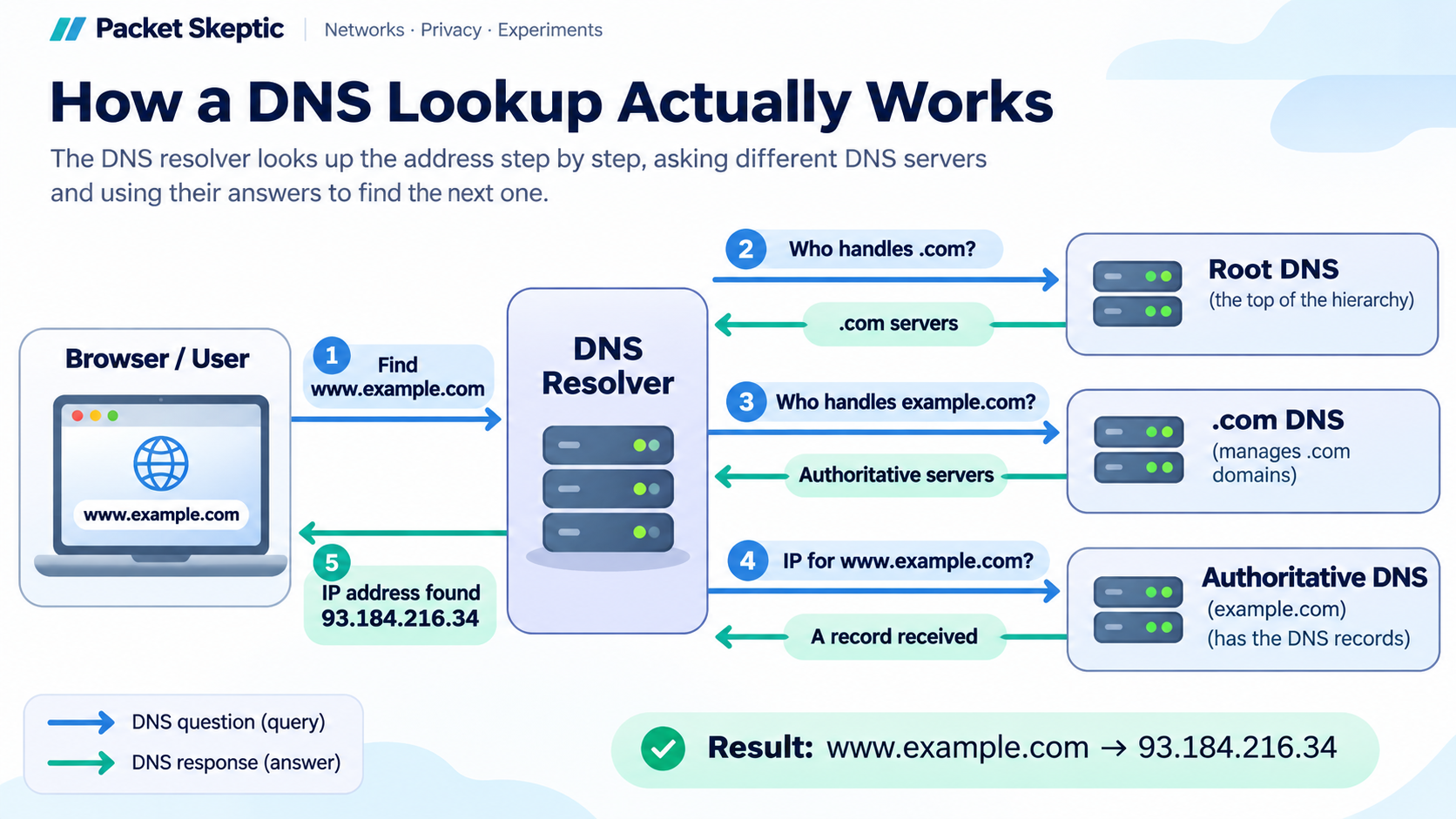
The resolver may start by asking a root DNS server. Root servers sit at the top of the DNS hierarchy.
But a root server doesn't know the IP address of every website. Its job is much simpler: point the resolver toward the servers responsible for .com.
Armed with that information, the resolver contacts a DNS server for the .com domain.
That server usually doesn't know the website's IP address either. Instead, it tells the resolver which DNS servers are responsible for example.com.
These are called authoritative DNS servers. They provide the DNS records for that domain.
The resolver contacts one of them and asks for the information it needs.
For example, an A record contains an IPv4 address, while an AAAA record contains an IPv6 address.
Sometimes the answer points to another domain name rather than directly to an IP address. That's a CNAME record, and the resolver then needs to find the address associated with that name.
Eventually, the resolver gets the information it needs and passes it back to your device.
Your browser now knows which IP address it can try connecting to.
In a simplified example, the process looks like this:
The resolver performs three separate lookups, contacting the root, .com, and authoritative DNS servers in sequence. Each server sends its answer back to the resolver.
Of course, not every DNS lookup follows this entire chain. The system tries to avoid unnecessary work wherever possible.
For instance, a resolver usually doesn't need to ask a root server who handles .com every single time. It already knows the answer from an earlier lookup.
It's a system of shared responsibility. Each level knows its part and helps the resolver find the next one.
And nobody needs to keep a complete list of the internet's addresses in one place.
Why Doesn't DNS Look Everything Up Again and Again?
Imagine a popular website whose address is requested a million times a day through a single DNS resolver.
Does the resolver really need to contact other DNS servers and repeat the whole lookup for every request?
Of course not.
That's what caching is for: temporarily storing information you've already retrieved.
A resolver saves DNS records and can reuse them for subsequent requests. Browsers and operating systems may also keep their own cached copies.
But how long should a saved address remain valid?
That's where TTL — Time to Live comes in.
TTL defines how long a DNS record may be kept in a cache before it needs to be refreshed.
Suppose a record has a TTL of 3,600 seconds. That's one hour.
Once the resolver receives the record, it can use the cached answer for the next hour. When that time runs out, it will need fresh information before answering another request for that record.
Now let's return to our popular website.
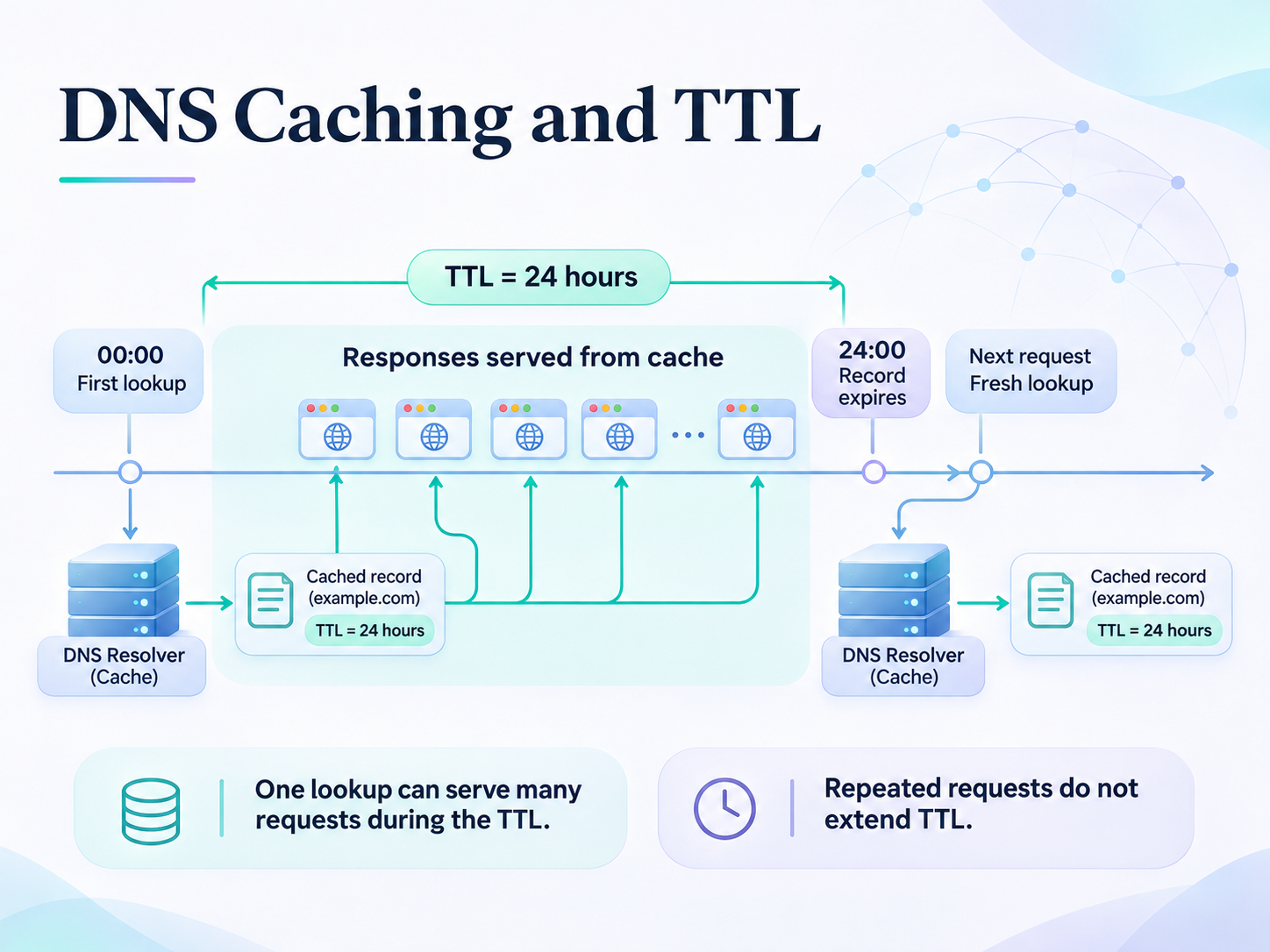
Imagine its DNS record has a TTL of 24 hours, and the resolver receives a million requests for that name during those 24 hours.
The first request causes the resolver to look up the address and save the answer. Subsequent requests can use the cached copy.
A day passes. The record expires.
The next request triggers a fresh lookup. The resolver saves the new answer, and the 24-hour countdown starts again.
One lookup can serve a million requests over the next 24 hours. That's a tremendous amount of work avoided.
In reality, TTL values vary, and some resolvers use additional techniques to refresh cached information. But the basic principle remains the same.
There's also an important detail: each new request does not restart the TTL countdown.
If a record has a TTL of one hour, it doesn't stay valid forever just because thousands of people keep asking for it.
Once that hour is up, the magic wears off. The cached answer has expired, and it's time to get a fresh one.
The Website Has Moved. Why Does DNS Still Remember the Old Address?
Imagine a website owner moves their site to a new server and updates its DNS record.
Previously, the domain pointed to one IP address. Now it points to another.
But some DNS resolvers still have the old address cached.
As a result, some visitors reach the new server while others continue connecting to the old one.
If the old server is still hosting the website, those visitors may see an older version. If it's been shut down, they may find that the website no longer opens at all.
Meanwhile, the authoritative DNS server may already have the correct new address.
So why doesn't everyone get it immediately?
Because one resolver has already refreshed its information, while another is still using a cached record that hasn't expired.
This situation is often called DNS propagation. But the term can be a little misleading.
Usually, the new record isn't gradually travelling from one DNS server to every other server on the internet.
Instead, different resolvers keep using their cached answers until those answers expire. Then they retrieve updated information.
There's a useful practical lesson here.
If you're planning to move a website, reducing the TTL of the relevant DNS records beforehand can help resolvers pick up the new address sooner.
But you need to do it in advance.
If a resolver has already cached the old record for 24 hours, changing its TTL on the authoritative server won't make that resolver immediately forget the answer it received earlier.
That's one reason website owners often keep their old server running for a while after moving to a new one.
What If DNS Can't Find the Address?
So far, we've assumed that the DNS record exists and the resolver can retrieve it.
But things don't always go that smoothly.
Perhaps you made a typo when entering a domain name. The resolver performs a lookup and receives an NXDOMAIN response.
That means the requested domain name doesn't exist in DNS.
Another possibility is that the domain exists, but the resolver can't complete the lookup because something has gone wrong. One possible result is a SERVFAIL error.
There's an important distinction to understand here.
DNS tells you which door to knock on.
It helps you find the IP address where you can try to reach the server.
Whether anyone opens that door, whether the server responds, or whether the website itself is working — that's another story.
DNS has already done its part.
Incidentally, DNS can cache more than successful answers. Certain negative responses can be cached too, which is why fixing a DNS problem doesn't always make it disappear immediately for every user.
See DNS in Action
You don't need to install any special software to take a closer look at DNS.
If you're using Windows, you already have everything you need.
We'll use PowerShell.
Here's how to open it:
- Press
Win + Ron your keyboard. A small Run window will appear. - Type
powershell. - Press
Enter.
A window will open where you can enter commands.
Don't worry. We're not going to change any computer settings. We're just going to ask DNS a question.
First, try a DNS lookup using your system's configured DNS resolver:
Resolve-DnsName example.com -Type A | Select-Object Name, Type, IPAddress
Press Enter. PowerShell will show the IPv4 (A) records returned for the domain. You might see one address or several.
Now let's choose the DNS resolver ourselves:
Resolve-DnsName example.com -Server 1.1.1.1 -Type A | Select-Object Name, Type, IPAddress
This time, we've explicitly asked 1.1.1.1, Cloudflare's public DNS resolver.
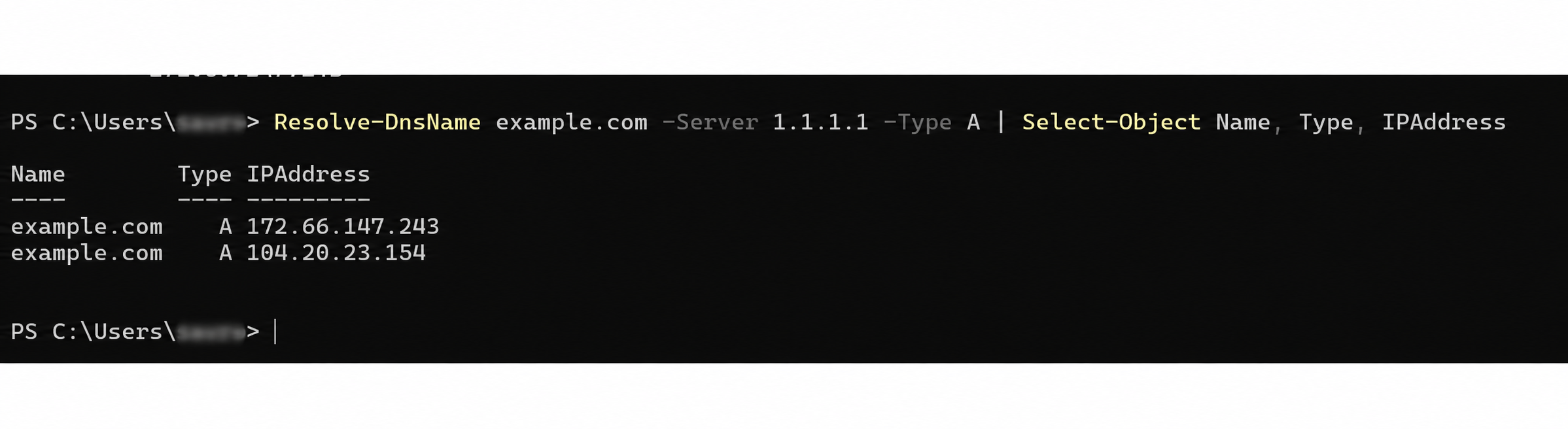
Compare the answers. They may be identical — after all, both resolvers are looking up the same domain. But sometimes the results differ.
Large online services can have multiple IP addresses, and different resolvers may return different answers. Caching can also explain some differences.
And here's the interesting part: we didn't even have to open the website.
We asked DNS directly and found out where to look for it.
DNS Knows the Name, Not the Whole Page
There's one more detail that's easy to miss.
Take a look at this address:
https://example.com/articles/dns
It looks like one long website address.
But DNS is only interested in the domain name: example.com.
The rest serves a different purpose.
https:// specifies the protocol your browser will use to communicate with the website.
/articles/dns is the path to a particular resource on that site.
DNS doesn't store a list of every article, photograph, or page on a website. It has no idea what's waiting at each individual URL.
Its job ends much earlier.
Once the browser has the IP address it needs, it can move on to the next steps: establishing a connection, negotiating a secure HTTPS session, and requesting the page.
The System We Only Notice When Something Breaks
We rarely think about DNS. We type a familiar address and expect the website to appear.
Yet behind that ordinary action is a huge distributed system, with no single server that knows everything.
Some servers help locate the ones responsible for a domain. Others hold the records themselves. Resolvers gather the information and remember it, so they don't have to repeat the same work over and over again.
Thanks to all of this, we can browse the internet without memorizing server IP addresses or noticing the countless technical processes happening behind the scenes.
As long as everything works, we don't even think about it.
And that's a good thing.
Was this article helpful?
Found a factual error?
Technical accuracy matters. Tell us what appears incorrect, and we will review it.